Olympics TV Schedule
Posted on August 10th, 2008 by Dana
It looks like this is the best overview for what is on now.
It looks like this is the best overview for what is on now.
Here is a great idea for a new online social networking app: StomachBook. People can link through their stomachs, not by their faces. It’s time we get down to meeting people who eat like we do, not think. There could be a whole linky thing with recipes and restaurants. Friends would be called TummyChummies. Just a thought.
I’ve always been intrigued with tablet PCs, but could never really see how the tool could move me past paper and pens. The other day a patient told me about how he uses Microsoft’s OneNote on a tablet PC. He records the lecture through OneNote and an external USB microphone. Then he takes handwritten notes in OneNote. Throughout the lecture, OneNote matches his notes to audio points in the recorded lecture. Not sure what the teacher said when you were scribbling the diagram? Just have OneNote playback the lecture at the point when the drawing began! Here’s a video of the process.

Imagine the possibilities if a decent recording could be coupled with decent-quality snapshots of the teacher’s PowerPoint slides! Not only would your notes be searchable when it’s time to sit down and review them, but the lecturer’s comments can quickly be replayed.
Backing up your notes just got easier as Microsoft’s Live Mesh offers 5GB of backup storage space for free. Time that puppy to synch with Windows Live Foldershare, and the thought of tablet/notes theft is far less daunting.
Wanna be totally paperless? If any teachers are still giving out handouts, the ScanSnap510 sheet-feed scanner by Fujitsu is the answer. Go back to the dorm room and throw those handouts in the hopper. This scanner does both sides of the page at 3 seconds per page. The price is a little steep (~$400), but it may be worth it to some students who either want to be totally paperless or have all of their notes in one place. (For light loads, maybe something slower and cheaper will do the trick?)
Tablet PCs cost too much, right? Well, every student going to college has to get a laptop these days, so most people are spending $500-$800 (maybe more – a LOT more if they bought a Mac) or so for their darling’s laptop. This blog entry claims that the student will spend at least $100 each year in office supplies, expenses that could be nullified by tablet PC use. After a couple of years, that puts the total cost in the tablet range, so it may not be that much more to have a searchable, archivable, and sharable notetaking system after all.
 From the days of MealMaster and Prodigy, my family and I have been big fans of computer cookbooks. The ability to store an infinite number of recipes in an easily searchable, confined spot has been a joy in the kitchen. Several years ago Sierra bought MasterCook and looked like they were going to make great strides with their excellent program. It was far ahead of its time, being a database where items (in this case, recipes) could be tagged with multiple categories. I longed for a flexible database that would allow me to tag entries that had nothing to do with food and it’s here: Evernote.
With Evernote one can place little written notes, copied web material, scanned notes, or photos into a database, and tag them for easy retrieval. The search is fantastic, and the database is backed up online so it can be accessed from any place with web access. There is an overview video that demonstrates the concept, though the narrator is barely intelligible at certain moments.
 I decided to move a cookbook of about 500 family recipes over to Evernote, and it went fairly smoothly. Using the instructions below, one should be able to smoothly transport a MasterCook recipe database over to Evernote.
Evernote offers a few advantages over MasterCook. The ability to access recipes from anywhere on the web is very enticing, especially if one has mobile web access with a device like an iPhone, Blackberry, Treo, or other large format phone. The second huge advantage is retrieval. Evernote’s search finds matches as you type, so inputting a word like “chocolate” will show every recipe containing chocolate. Keep typing “chip” and the search results narrow to something fairly browsable. Compared to MasterCook’s convoluted search page, Evernote is as easier to use than Google!.
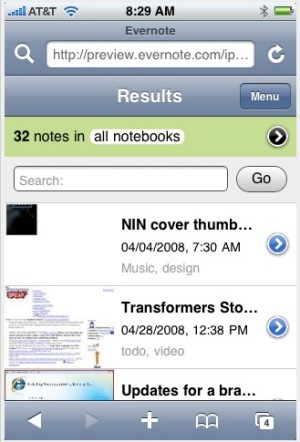 Evernote also allows tagging, so all of the recipes can have category tags. Tag certain recipes as “Favorite”, “ToTry”, and “Standby” and you have a very powerful database (MasterCook also could handle this, but Evernote is easier to work with). The final, major feature that I haven’t taken advantage of is the easy capture of recipes online. I foresee finding this month’s Bon Appetit recipes, selecting them and placing them into Evernote where I’ll tag them as ToTry, all in about 5 minutes. No clunky folders or mistorn magazine pages! Another huge advantage to Evernote is that it is free.
Mastercook has features that Evernote cannot handle. The two I will miss are recipe scaling and the pretty format printer output. To make those cookies for the entire church will require a little bit of calculating for ingredients. There are plenty of features I won’t miss, though, such as nutritional information, awkward entry of ingredients (like “Watermelon, cubed in 3/4″ by 1” chunks), and instructional videos. I just didn’t use these features.
To get a MasterCook cookbook into Evernote, we’ll basically export the recipes from MasterCook into one big document. We’ll open that big document in Microsoft Word, manipulate it to strip unnecessary formatting, then save the recipes as individual .txt files. Once the recipes are in their own .txt files, we’ll drag them into Evernote and be done!
Here are the detailed instructions:
Sub BreakOnPage()
   ' Used to set criteria for moving through the document by page.
   Application.Browser.Target = wdBrowsePage

   For i = 1 To ActiveDocument.BuiltInDocumentProperties("Number of Pages")

      'Select and copy the text to the clipboard.
      ActiveDocument.Bookmarks("\page").Range.Copy

      ' Open new document to paste the content of the clipboard into.
      Documents.Add
      Selection.Paste
' Removes the break that is copied at the end of the page, if any.
      Selection.TypeBackspace
      ChangeFileOpenDirectory "C:\"
      DocNum = DocNum + 1
      ActiveDocument.SaveAs FileName:="test_" & DocNum & ".txt", FileFormat:=wdFormatText
      ActiveDocument.Close

      ' Move the selection to the next page in the document.
      Application.Browser.Next
   Next i
   ActiveDocument.Close savechanges:=wdDoNotSaveChanges
End Sub
Once the recipes are in Evernote, you’ll want to take some time tagging them. Evernote will not read MasterCook’s tags, but thankfully one can search for the tag names, then tag all of the recipes in the search result quickly. This will greatly speed things up versus tagging each recipe in Evernotes tape stream.
Evernote can handle a tag hierarchy, too! Instead of having names of ethnicities, food categories, and source names scattered throughout your tag list, simply create a few tags called: Ethnicity, Meats, Desserts, Source, etc,. Then, create new tags for each ethnicity (Mexican, Chinese, Indian, etc), meat type (chicken, lamb, beef, etc), dessert category (pies, cakes, ice cream, etc), source (Bon Appetit, Emeril, etc). All of these tags will appear initially as main-level tags in Evernote’s left margin. Now drag tags like “Chicken”, “Lamb”, and “Beef” to the “Meats” tag, and they will become sub-tags of Meats. This is an excellent way to organize your tags so you can browse them later!
Good luck and happy cooking!
 Now that the MLB All-Star Break is over, let’s talk college football! I’ve uploaded the 2008 football schedule for all ACC teams in .CSV format.
Google Calendar:
(right click on the link above and “Save As…â€)
Note: Use at your own risk. I do not accept responsibility for any consequences resulting from errors in the schedule.
You may recall my series on souping up Firefox 2. Lifehacker now has some tips on modding the new Firefox 3.
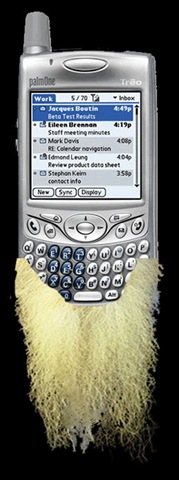 I’ve certainly loved having my Treo650 for the past 3 years. It’s allowed me to carry all of my contacts, do-lists, calendar, and phone wherever I go. Frustrating, though, is that it seems like a piece of technology that hasn’t evolved in over 10 years. Vista users, imagine still using Windows 95 for everything!
The Palm was a big step up in convenience from my 5.5 x 8.5 Covey-based planner that I constantly forgot to bring with me. After reading and appreciating David Allen’s Getting Things Done book, I’ve come to realize just how outdated Palm’s organizational tools really are. (If you haven’t read that book, BTW, it’s great. Amazon has it for $9!)
Here are two minor changes that would revolutionize the Palm platform:
The chances of Palm waking up and realizing their software shortcomings are slim-to-none. Microsoft released information to developers about programming for Vista in the Summer of 2005. Palm didn’t release a Vista version of their desktop software until January of 2008!!!
The iPhone’s quickly developing ecosystem and semi-open SDK make it a promising device. To date, though, the $500 phone doesn’t even have a ToDo list, much less a crappy one! The iPhone would be a $500 downgrade for GTDers who want to run local organization applications. Chances are, though, that an excellent set of organizational applications will accompany the new G3 phone this summer, and blow away Palm’s family of devices. As annoying as Apple is, I won’t shed any tears.


