Entries Tagged as 'Tech'

Apple TV: Toy or Game Changer?

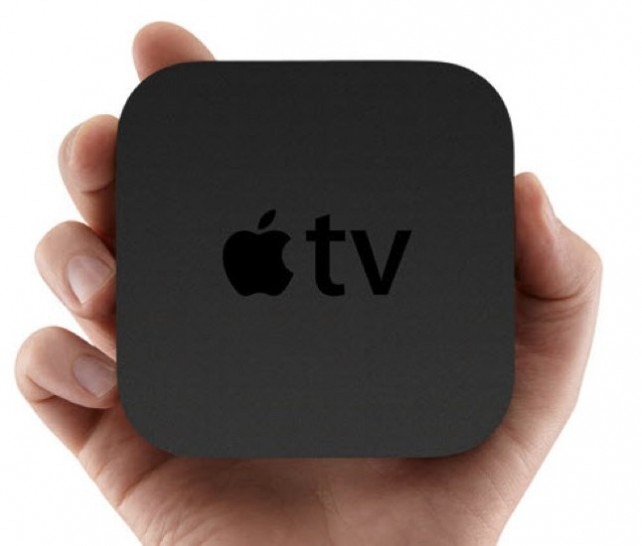
appletv Apple presented a new Apple TV at yesterday’s event. While watching the event, I was most impressed by the device’s small size. However last night I was thinking, what is the point of something being small? Up to a point, it really only affects portability. Since this is a settop box, portability is not a factor at all. Since it has to have a network connection to do anything. I’m not going to take it to the beach or on vacation. Therefore this "feature" is a waste.

Perhaps the size allows use in tight places like the kitchen and bedrooms. Windows Media Center has no devices now that fit this essential use case, which is absurd. The $100 Apple TV device works in only one location, though. In order for one to cut the cord for their house, they would have to outfit each room with the streaming-only device. Content rented for one unit cannot be transferred to another family unit, so there is absolutely no “whole-home” aspect to it.

Another feature that presented well was Apple’s imitation of Windows 7’s PlayTo. After 10 months of heavy Windows Media Center use with a PC, extenders, and laptops, this feature is something I never use.

Unless you can deliver live, HD sports, you blew it. Cable sports channels are, at this point, irreplaceable. We aren’t going to cut the cord for this device or any other with the current sports model. ESPN’s contracts with cable companies don’t bode well for change any time soon, either. The Cable companies have ESPN (and HBO for that matter) locked down, and aren’t going to let ESPN shunt content to viewers using new technology for many, many years.

Cable is here to stay and any “game-changer” is going to have to have hybrid abilities as we slowly cut the cord. At this point the upcoming Google TV looks like the best suited device, but still misses the mark wildly. Windows Media Center is the most stunning whole-house DVR, but only one room gets to enjoy streaming internet content. Microsoft is oh-so-close to knocking this one out of the park, but seems deathly afraid to connect a few simple dots. Therefore their system in its current state is a mess.

The new Apple TV is an improvement over the last version, and the pricing for the device and content is a very welcome change. In the end, the device doesn’t allow most people the opportunity to change the way they watch TV. It allows one a bit more freedom to buy content for a second time. Sure, that does give a consumer a bit more freedom, assuming the content is really there (Big Bang Theory still isn’t available for streaming on CBS’ own website. Will full episodes be available on AppleTV? Will they be available in time for me to watch them before my next encounter at the office water cooler?). Is it really even worth $100 plus rental fees for this freedom? It’s almost like presenting a sexy scooter and saying you "bought some wheels" so you can pretend you have a substitute device for a car.

The Next Frontier for Automakers: The Cockpit

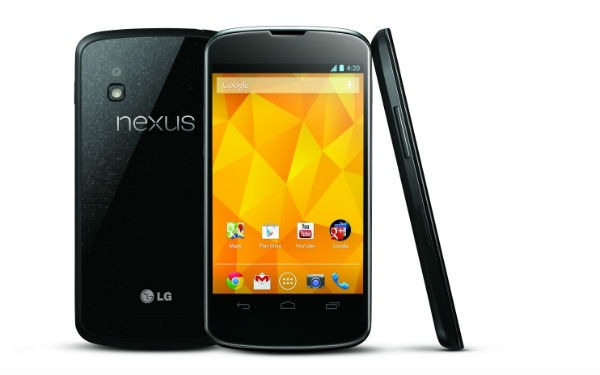
navigation-system[1] There once was a time when the cutting edge of technology for consumers existed with the automobile industry, but those days are long gone. Without a doubt the fastest-changing industry right now is the mobile electronics market. Palm’s Treo brought the “smartphone” to millions of consumers hands about 8 years ago. Since that point, though, the market has dramatically changed with the introduction of the iPhone, Android, and the soon-to-be-released Windows 7 Phones. How much have cars changed in 8 years? As one can see from this 3-year old Toyota Camry dashboard, not much. This is the illogical, poor user-interface that has been a staple for Toyota since the early part of the last decade. Next to the iPhone and the Nexus One it looks downright silly.

Because people are keeping their cars 4-8 years, it makes little sense for auto manufacturers to try reinventing the driver-interaction wheel. By the time their product goes to market it will be outdated. Factory-installed GPS devices stand as shining examples of this. In very little time these expensive systems wind up as outdated relics compared to the continually current offerings on Android phones and the iPhone.

Ford introduced its excellent Sync system by Microsoft which features Bluetooth stereo connections and a fully functional wired iPod interface. However it insists that it do all of the heavy lifting and comes with many strings attached. For example, in order to use the system’s hard disc drive to store music, one must sit in their car and rip all of their CD’s one by one. Didn’t the consumer already go through this laborious process in their house a few years ago when they committed to a portable mp3 player? For’d Sync system can deliver weather and traffic information, but it requires a subscription. Why would I buy these when my iPhone gives me this data for free? Sync also offers integrated Sirius radio, but if I rarely exit 3G wireless coverage zones, why would I buy this when I can get Pandora for free on my phone?

With the turnover rate of portable devices being roughly 1/3 of the turnover time for car ownership, there really is no reason for auto makers to even try to compete on these fronts. With internet access more ubiquitous in the ensuing years, there is no way car makers can continue with their model.

Advanced control systems in cars usually divide their functions into four categories: 1) Diagnostics and controls, 2) Climate Control, 3) Navigation, 4) Audio/Phone. There really is no reason for the car to run these latter two. What should auto makers pursue? They should pursue a large in-dash screen that acts as a capacitive-touchscreen client for a docked mobile smartphone. While the car maker could continue to make their own GUI for the first two sections, the car’s 5-7” in-dash screen should simply be an external display for the iPhone in the other two realms. Let the newer devices featuring user interfaces more familiar to the driver do the heavy lifting.

Of course, safety is a big concern. So, the phone should be aware that it has been docked to a car system, triggering a “Car Mode”. This mode would only enable apps that have been approved for moving cars. The iPod interface should only have large print type, and remain extremely easy to navigate while moving. The phone’s navigation system in this mode would disable most of the NAV controls when the car is moving. Other music apps, like Pandora and Slacker, could work fine in this mode, given that they prioritize button size and function over large album art.

Honestly there really is no reason that the carmaker couldn’t sell or give apps for its diagnostics and climate controls, too. The car’s system could come with a standard UI for non-smartphone users. However the smartphone versions of those apps could feature upgraded and customizable interfaces that run in place of the standard UI in the presence of the docked smartphone.

We are on the verge of some sweeping changes in the auto industry. Auto makers have pretty much mastered safety as well as planned obsolescence. What they have failed to do is excite car buyers in the last 15 years. There are only minor differences offered to consumers in today’s car market. The next frontier in design, though, is in the cockpit. The automaker who makes a driver experience that best leverages already popular and quickly-evolving mobile devices will gain an enormous advantage over its competition.

Publishing Panasonic HD Videos to YouTube

panasonic-sd9 Last year we bought a Panasonic HDC-SD9 high-def camcorder and have been extremely impressed with the camera in general. The picture quality, size, stability, and SD Card form factor have perfectly suited our needs. The major weakness is management of the video files. Panasonic includes some software with the camera, but it is useless for doing anything but putting videos onto a DVD, which defeats the purpose of recording in HD. They also included some movie-making software, but is extremely cumbersome, and still did not manage high-def videos in Windows XP or Vista.

Thankfully there is Windows 7. Panasonic and Sony selected the AVCHD format for their videos, but previous versions of Windows were not able to manage this codec. Not only does Windows 7 include native support for AVCHD, but the new Windows Movie Maker, a free download from Windows Live, can easily publish these files to YouTube.

In order to publish one of the SD9’s videos to YouTube, one must first move the video files onto the computer’s hard disk drive. Insert the SD card into the card reader, and navigate to that drive using Windows Explorer and look for the folder: X:\PRIVATE\AVCHD\BDMV\STREAM  (where "”X” is the drive letter for the SD card). Each scene recorded by the camera will appear as a .m2ts file. (These files include the video and the audio, by the way.). Select all of the .m2ts files, and move them to a temporary folder location you’ve created on your hard drive. (I set up \Users\Public\Videos\UnprocessedVideos as mine, and put a link to it in the SendTo list).

moviemaker

Next, open Windows Live Movie Maker and drag all of the .m2ts files of interest into the workspace in the right half of the screen. Drag the scenes around to put them in order. Then, for each scene that begins with a transition, put the cursor at the beginning of the scene and select a transition (by going to Animations and selecting a transition.)

To publish the video, click on the Home tab, and select the YouTube logo in the Sharing section of the ribbon. You’ll have to enter your YouTube account name and password for each upload. After a few minutes you will be notified of the publishing success with the option to view the video in YouTube. It will take YouTube a few minutes to complete its transcode, and the job will be done.

ScanSnap S510 Finally Gets Windows 7 Driver

185149[1] Fujitsu has finally released an updated driver for their phenomenal ScanSnap S510 sheet fed scanner. The update comes 76 days after the release of Windows 7, and 246 days after Windows 7 release candidate was officially released.

In order to obtain the driver, U.S. customers must call (800) 626-4686, hit option “8”, and give the service advisor the scanner’s Part # and Serial #.

The ScanSnap S510 scanner is a football-sized masterpiece that unfolds to reveal an excellent sheet-fed scanner. The S510 works at about 3 seconds per sheet, and scans both sides of the paper into several formats. The scanner comes with a copy of Adobe Acrobat Standard 8, so obviously .pdf outputs are a snap.

Beware, though. Adobe does not support Acrobat Standard 8 in Windows 7, and I have had mixed results installing it on two different machines. Adobe says that Acrobat 10.2 and up are supported in Windows 7.

Nevertheless, the scanner is a workhorse. I have used it for two years, now, scanning every receipt, bill, dental school notes, and daily logs that we used to keep in large notebooks.

Picture This: Organize A Large Library of Digital Photos

pics_MC7Oh, the joy of the holidays, a special time of year where we take tons of photos and actually have some downtime afterward to get organized. With that in mind I thought it might help someone to offer my system for handling my digital photos. We have over 15,000 digital photos, which is great, but only as great as our ability to go back and access them easily.

There are dozens and dozens of tools out there designed to help people organize and display photos, so there are many organization schemes, some excellent. When I was inventing my wheel, I defined two high priorities: quick access and cheap price. I’ve been extremely happy with this system after over a year, and hopefully others can integrate it and enjoy it as much as I have.

ACCESS

Being able to find that specific photo is made easy by a great system. Was that photo I love of my daughter on the boat at the beach in 2008 or 2007? Was it the May trip or was it the June trip? We had a yard sale a couple of years ago. Did we have that in October or September, and do the photos of the unsold items include the old popcorn popper? Where is that early construction photo of the RBC Center? Where are those favorite 15 photos from Disneyworld? These types of questions can be answered quickly with a good system in place.

What about those times when there are guests in the house? The last thing you want to do is lug them into your liar and have them huddle around the computer screen while you search and search for a photo. That’s why we really enjoy accessing photos through Windows Media Center (pictured above). With our setup we have the den TV directly connected to the central Media Center PC, and all of the other TVs have Media Center Extenders. This allows us to access our entire photo collection from any TV in the house, which is a huge convenience, especially when guests are in the house. This isn’t a requirement, but makes the system far more powerful.

ORGANIZATION

Whether one is browsing through pictures of a lost pet or searching for a photo of a specific place, a collection of photos that is efficiently tagged will save loads of time and add a tremendous amount of value to a photo collection. The key is file tagging.

What is “tagging”?

In the old days we took a developed photograph and placed it into an album, usually arranged chronologically and/or by subject. With digital photos one can tag a photo with as many organizational tags as they wish, and the single photo will appear in any number or applicable search results. For instance, if I have a photo of my nephew, my daughter, and my cat taken on the dock at the family beach house during my sister’s birthday party, I can tag the photo as “Drew”, “Lindsay Anne”, “Maddie”, “BeachHouse”, and “Kim’s 35th”. When I use software that can quickly display all of the photos tagged “Maddie”, the party photo appears in the collection. When I look at the “Drew” photos, the photo will shows up as well. So not only is tagging great for finding a particular photo that has known qualities, but also it is excellent for putting together “virtual” photo albums.

There are many tools for photo tagging, but I’ve found that Windows Live Photo Gallery is the best. Not only is it a free download, but it also writes the tag information in the .JPG file itself. Most other photo programs, like Picasa, store this tag information in a separate database file, making the database only usable in that one particular piece of software. If the tags are stored in the photos themselves, however, one can transport a collection of photos to another computer without losing all of the tagging information.

pics_tagsWPGOnce one installs Live Photo Gallery and points the software to a folder structure containing photographs, the next step is to create a set of frequently used tags. The second big asset for Live Photo Gallery, is that it allows tag hierarchies to be formed. I created five top-level tags under which all photos fall: Events, Objects, People, Places, and Other. (literally entered as “ZOther” in order for force it to the bottom of the alphabetical list.) Under People, I have a hierarchy of tags: People:Family, People:Famous, People:Friends. Under People:Family, I have these tags: People:Family:Immediate, People:Family:McCall, People:Family… Under People:Family:Immediate, I have a tag for each of the 4 family members (including the cat).

pics_tagsWPG3A major problem with Picasa (and several other software programs), is that it does not allow hierarchical tags. Therefore once tagging is complete, one will find a list of tags that are not organized. Unrelated tags like “Beach”, “Ballpark”, “Ben”, and “Beerfest” will all appear together in a giant list of tags. While a hierarchical tag structure requires a viewer to drill downward through three or four layers, typically, it is still extremely manageable and efficient.

Going through thousands of photos, tagging each for the relevant people, places, and events shown is not a quick process, so I recommend only doing a couple hundred at a time, depending on the size of your collection. The good thing is that this is not a particularly intellectually challenging project that requires 100% focus, so it can be done during football games with great ease. Remember, too, that these because the tags are written to the JPGs themselves, this project can be done across a network, so it can be just as efficient to sit at a laptop in the den as it is sitting at a desk at the house’s main computer.

File Location

So, the virtues of tagging should be clearer by now, and that leaves one question: how to I physically organize the JPG’s themselves on the hard drive? I once tried organizing the photos by the event or main subject of the photo, and it was a disaster. Tagging serves this purpose much better. So if we are dealing with, essentially, a database and search system all the time, I ought to be able to just dump all of my photos into one giant folder, right? Not so.

There are two problems with a blind dump. One is that cameras create filenames usually based on a sequence by that particular camera. What if a family has more than one Canon camera, all using the same numbering scheme? What if a camera’s numbering sequence accidentally gets reset? In both cases there will be filename duplicates, creating an unacceptable situation in any operating system.

Another problem with a blind dump is every operating system’s inabilities to efficiently display a folder containing thousands of files. If you like watching hourglasses and throbbers, be my guest and create large folders.

The most efficient system I have found is to rename each file as it is being put into the file structure. First, move the files off of the camera’s data card into a designated temporary folder with Windows Explorer. The folder I created for this is:

C:\Users\Public\Pictures\UNPROCESSED_PHOTOS

To save time, I placed a shortcut to this photo in my “Send To” context menu (see post about editing the SendTo list). By selecting all photos on the card, and Shift-selecting Unprocessed_Photos using the Send To shortcut, I can move photos to a designated spot in one quick action.

The next step is where the magic lies. I use a small, free piece of software called DIM.jar to move the photos to their final destination. (DIM requires that Java is installed). I use DIM to read the date of the photo, rename it based on a YYYYMMDD-XXX.jpg format, and copy it to a folder hierarchy in Public Pictures that corresponds the year and month of the photo.

DIM_setup Go into the DIM settings and change the output filename code to “YYYYMMDD-%2c.jpg”. The result will create a file with the year, month, and date in the filename. Because one may do a quick series of photos that takes 2 photos in the same second, I don’t feel the timecodes of HHMMSS are worth the bulk they add to the filename. Instead, I prefer an arbitrary 3-digit number that is assigned for the photo in the batch. A photo called 20081225-134.jpg is the one from Christmas in ‘08 with an arbitrary 134 attached. (That three-digit number gets reset each time DIM is launched)

Once you have verified that the photos copied correctly, then go to UNPROCESSED_PHOTOS and delete its contents. I do not recommend having DIM “move” the files, as sometimes there are glitches (ie. date setting was wrong on camera, some setting in DIM setup wasn’t quite right).

One important thing to remember is to NOT touch your files before sending them through DIM. This especially includes rotating the file in Windows Photo Viewer! Any time a change like rotation, cropping, contrast, etc is made, the JPG file is rewritten such that the metadata reflects the editing time as the time the photo was taken. This create inaccurate filenames and can result in photos being in the wrong folder on the hard drive.

This sounds like a big endeavor, but it really isn’t. I’ve trained myself to follow this sequence every Sunday:

  1. Insert photo card into computer’s card reader
  2. Open Windows Explorer, and move the photos to the Unprocessed folder (Shift-select Unprocessed folder in the SendTo menu)
  3. Open DIM from Start Menu shortcut
  4. Quickly double-check DIM’s settings
  5. Hit “Process”
  6. Verify that photos are in the correct month folders
  7. Erase contents of Unprecessed

Occasionally (and I mean once or twice a quarter), I’ll sit down with my laptop in the den while somewhat paying attention to a sporting event, and tag photos across the network.

The result is a system that is very easy to navigate from all over the house. If I want that photo of us from the tailgate party before the 2002 hockey playoff game, I can go to the “RBCCenter” tag and quickly peruse the couple of dozen photos from there. If I want to copy this photo to a website like Flickr, I’ll simply note the filename and easily find it using Windows Explorer. This is a snappy process given that any one month folder only has, maybe, a couple hundred files.

Having an organized, accessible photo collection is a giant luxury. I certainly realize this when I look through old family photo albums that only have a few dozen photos. They are hard to find, in small collections, not backed up, and organized using only one method. Ironically the amount of effort with the system described takes less time and effort than it did in the old days.

Dentrix, Dexis, and CAESY Enter the Windows 7 Era

Over the past year I have had some old machines in the office that were having extreme difficulty with lack of speed and driver instability in Windows XP. With all of the "problems" with Vista, I delayed purchasing new equipment and upgrading my version of Dentrix for a couple of years. With the arrival on Windows 7 and several "final straw" events, I decided to replace two of my machines and upgrade my server with Windows 7.

The road over the past three weeks has been rocky, but as crazy as it may sound, it has been more rewarding finding out the caveats of new hardware and software than it was banging my head against a wall with the old equipment and abandoned, malfunctioning drivers.

The following is a guide based on the state of hardware and software as of Thanksgiving in 2009 (Windows 7 has been officially released for 1 month). I use Dentrix, Dexis, and CAESY as my main workhorses in the office. Hopefully the information here will help to guide you in purchasing or waiting to purchase specific hardware.

I’ll first begin with software, and how it performs on a myriad of both equipment and versions of Windows 7 in my office. Each software package has been installed on a 32-bit and a 64-bit machine. On the 64-bit machines, both 32-bit and 64-bit versions of Windows 7 have been tested. Remember, you can install a 32-bit version of Windows 7 on a 64-bit machine, but you cannot install a 64-bit version of Windows on a 32-bit machine.

[Read more →]

Overcoming Realtek Sound Problems in Windows 7

Back when Vista SP1 came out, I had trouble getting the Realtek sound on my Intel DG33BU motherboard to work. My speaker in the tray had a red “X” through it, but the drivers didn’t seem to have any problems. When I tried to automatically upgrade the sound driver, it told me that I had the most up-to-date driver available. I kept getting a message saying that the speakers were not plugged in. Lo and behold, as I have found in almost every case, the few problems I had in Vista have not been corrected with Windows 7.  Hopefully the Googlebot will pick this up and help others with Intel Realtek sound problems in Windows 7.

I was able to get the sound working in Windows 7 by disabling the front panel jack detection. The way you do it isn’t intuitive. First download and install the latest audio drivers from Intel’s website (here is the link for the DG33BU). Then:

realtek.jpg

  • Open Windows 7’s Control Panel (Start| Control Panel)
  • Open the "Realtek Audio Manager" (not to be confused with “Sound”). (In order to display this, be sure that "View By" in the upper right shows "Large Icons" instead of "Category"
  • In the navigation bar in the far right, there is a little yellow folder icon. It is just below “Device advanced settings” and above “ANALOG”. Click the folder icon.
  • Click “Disable front panel jack detection” so that a yellow check mark shows up. Hit “OK”, and close the Realtek HD Audio Manager. That should re-enable the sound.

Ultimate Install Contest Winner

Imagine living in this house! It is 17,000 square feet and features 13 zones of audio, 5 of which have full surround sound arrangements. The system uses Windows Media Center as its core, with Crestron distribution hardware.

Linking the Treo 650 and Ford SYNC

The Treo 650 by Palm has been around for a many years now, and has always had a quirky bluetooth profile. After about an hour of following Ford’s instructions and a little bit of research, we finally figured out how to connect a Treo 650 (Verizon) with the impressive 2009 Ford Explorer SYNC system.

For some reason the Treo doesn’t work out of the box with the SYNC system. We found that once the Treo is paired with another bluetooth device, however, it becomes smart enough to handle the Ford SYNC connection.

  • Pair the Treo with a different bluetooth connection first. According to a poster on a message board, the Jabra headset, with its “0000” security code, with do just fine. We were able to break-in the Treo by connecting it to a 2005 Prius Bluetooth system (using code “1212”)
  • Delete any previous instances of the Treo in the SYNC system, and delete any previous instances of the SYNC in the Treo’s bluetooth page.
  • At this point the Treo will work as described in Ford’s instruction manual. After entering the six-digit code created by the Ford into the Treo, select “Car Kit”.

We were able to make calls and answer calls using the Ford’s interface. We did not, however, get a successful download of the Treo’s phone book. I didn’t have time to experiment, but it is likely that only the Treo Contacts that have a quick-dial assignment will be downloaded to the Ford. I assume that in order to download newly added quick-dial contacts to the Ford, one will have to re-pair the Treo and SYNC systems (simply delete the existing profiles of each other, and redo Step 3 above).

MacBook Distracting Students from Acquiring Functional Systems

It’s back to school time, and that means it is time for college students to think about their computer arrangements. I was playing with a MacBook Pro the other day and generally liked it, but was astonished at the price. After a some contemplation I concluded that there are far more powerful setups that can be attained for a fraction of the MacBook’s lofty price.

The MacBook family offers screen sizes of 13”, 15” and 17”. The base prices for these units start at $1,200, $1,700, and $2,500. Unfortunately all these customers have is…a laptop. It is sad to see what people are missing by spending this much.

While college is a very mobile environment, it also is one that requires much efficiency and organization. Imagine being able to take all of your notes in class while you record the lecture, and have those notes and the recording tied in real time together. Using OneNote, the student can! Unable to fully recall the discussion when a cryptic diagram was drawn? Simply hit the musical note next to the diagram and that segment of the lecture immediately plays back.

When the student returns to his or her desk in the dorm room, they will want a clean, neat full desktop setup, so a 22 or 24” monitor is needed. For an extra $75 or so the laptop can be used as a DVR, so there goes the need to buy a full-fledged TV.

One of the most powerful tools a student can buy, however, is a Fujitsu ScanSnap scanner. Instead of lugging around notebooks and syllabi, the efficient student uses this football-sized scanner to scan all notes and all syllabi. This way all notes are neatly organized, portable, and sharable on the network.

Theft is rampant on college campuses, so an external hard drive is needed at the desk for nightly archiving of notes and media.

$1,200

Here’s is an option in the $1,200 range worth considering:

$550 I recently got an HP laptop with Vista Home Premium, 3GB of RAM, 320GB HDD, a/b/g/n wireless, and a 17” screen for $550
$400 Fujitsu ScanSnap S510 Scanner
$80 1 TB Hard Disk Drive (3.5” internal) – prices are falling rapidly
$25 Sabrent ECS-STU35K 3.5” HDD enclosure
$170 Pegasus Portable Notetaker – Digital pen that memorizes your notes
$1,225 TOTAL

plus $250 Samsung 233SW 23” Widescreen Monitor (If one were to get a little 13” MacBook, they would certainly need a large monitor at their desktop, so the monitor’s price is pulled out of the comparison.)

Now we have a powerful system. A fantastic laptop serves as the core. One can quickly scan all documents and enter notes directly into the computer, and archive all of this data. For leisure periods, the laptop can be used as a DVR.

I would mount the hard disk drive enclosure under the desk (out of sight), and buy an extra AC adaptor that stays installed in the desk setup for an almost “docking station” setup.

$2,500

In the $2,500 market? Then we really have some flexibility. Consider a scenario that has the 23” monitor and backup system mentioned above, as well as the scanner. At the core, though, we use a Lenovo tablet PC. This allows the student to take notes directly on the screen in One Note while recording lectures instead of using the Pegasus pen.

$1,600 Tablet PC – Lenovo with 1.86GHz, Vista Home Premium, 2GB RAM, 250GB HDD, 8-cell battery, Microsoft One Note.
$400 Fujitsu ScanSnap S510 Scanner
$80 1 TB Hard Disk Drive (3.5” internal)
$25 Sabrent ECS-STU35K 3.5” HDD enclosure
$2,105 TOTAL

plus $250 Samsung 233SW 23” Widescreen Monitor

It appears that we have an extra $400. Instead of shipping it off to Steve Jobs, perhaps we could consider something more interesting. Let’s remove the portable HDD and put that $100 and the $400 towards a dorm room server. Something like a Windows Home Server or a stand-alone PC that runs Windows Media Center would be a fantastic solution. A media center PC in the room would always be available to record shows, and could act as a archival center for the documents on the laptop.

Another option is to take that $400 and conservatively invest it so there is seed money for the next computer the student will need (probably in two years). Imagine how out of date that 4 year old MacBook pro will seem compared to a fairly new computer in 2013.

The MacBook Pro is a nice computer, for sure. However its staggering price seems to be luring students away from a far more powerful armamentarium. It is leaving students with a tool that allows them to get on the internet and write documents. The MacBooks are only the seed to a fully integrated system. For that price, wouldn’t you rather just take the fully integrated system and be done with it?

Customize Your AddThis Button for Wordpress

As you may know, AddThis is a great way to add a social networking link to the end of each of your blog posts. There are many ways to implement AddThis for WordPress, but the published means only use the four stock button styles. Those styles are alright, but they feature del.icio.us, Digg, and Microsoft Live icons. It is 2009! Get with the program and update those icons, man!

In order to implement a custom AddThis button for a stand alone WordPress installation, one must download the AddThis plugin for WordPress, upload it to the plugins folder, and activate the plugin from WordPress’ dashboard..

You should see AddThis as an item in the Settings section in the left sidebar of the Dashboard. Select AddThis, and select “Use dropdown menu" and “Show on homepage”. Once you hit “Save Changes”, you should see an "AddThis” button appended to each of your posts. The order of sites shown in the pop-up hover window is determined by what is written in the “Drop-down options” entry in the AddThis Settings window. These must be in all lowercaps, and separated by commas. I set mine to “twitter, favorites, facebook, email, digg, friendfeed, delicious, myspace, stumbleupon, reddit, more” and have been happy. The stuff for common people shows in the left column while the geeky links are in the right.

So far we only have a stock button, though. Go make a 16-pixel tall button in your favorite graphics program, and save it as a .gif file. Then you’ll have to alter the addthis_social_widget.php file (which is found in your wp-content/plugins/addthis directory). Open the file (I had to download it and open it in Wordpad to edit it).

Find the “$addthis_styles” line, which is very close to the top of the file. The items in the group of lines following determine what options are offered in the “Button style” pull-down box in the AddThis Settings window. As the helpful comment says, you can add your own style by copying their sample line and editing the graphic location. You’ll also want to specify the width and height of your .gif file (so the browser doesn’t stretch it when rendering). Mine reads:

                      ‘plus’ => array(’img’=>’sm-plus.gif’, ‘w’=>16,
‘h’=>16),

                      ‘customGGR’ => array
(’img’=>’http://www.gogoraleigh.com/wp-content/themes/df_
3col_theme/images/share_button2.gif’
, ‘w’=>125, ‘h’=>16)

                      /* Add your own style here, like this:
                        , ‘custom’ => array
(’img’=>’http://example.com/button.gif’, ‘w’=>16, ‘h’=>16) */
                    );

Be careful that the syntax is consistent with the default entries (commas, apostrophes, etc). My graphic is 125 wide and 16 high, and lives at gogoraleigh in the images directory. You’ll need to upload your graphics file to the location you’ve specified, and you’ll need to replace your old addthis_social_widget.php file with the one that includes the new call for your custom button.

Return to the AddThis Settings page in the WordPress dashboard and refresh the page. The Button style pull-down should now include the custom button you’ve added. Select it, hit “Save Changes”, and refresh your view of your site. You should now see your AddThis graphic at the end of each post.

Computer Prices ‘97

Today Ed Bott wrote an article reminiscing about his computer hardware collection ten years ago. IN the article he describes an inventory of what he had, which reminded me of a spreadsheet I made in 1997. I was trying to convince my boss to implement computers into our dental office. Just 12 years later computers, digital x-rays, intraoral cameras, video education systems, and more are the standard. Back then, though, it was a steep hill to climb.

After doing some comparison shopping, I recommended that we get a system from Intrex. It featured a 200MMX Pentium processor, 4.0 GB HD, 32MB of RAM, a 24X CD-ROM drive, 33.6Kbps Fax modem, and 1MB of video memory. Total cost: $1,330. This was a system that was fairly middle-of-the-road in performance and price.

Price was a huge factor, because that $1,330 only included the CPU. Also recommended: 15” monitor ($230), Iomega Ditto Tape Backup Drive ($170), 6 Ditto Tapes ($120), Windows 95 ($100), HP 6Pse Laser Printer ($800), HP ScanJet 5pse ($300), Microsoft Office ‘97 ($480), and a $30 surge protector.

The total cost of this workstation was $3,560. After adding in the dental software which cost somewhere in the $10,000 range, my boss balked and the practice remained computer-free long after I left.

That was a different era. I was busy trying to score on NHL ‘97 with my 40MHz desktop machine. Email was becoming popular, and Juno was the first to offer it for free. The internet was text-only, and download speeds of 56K were expensive. Removable media meant 3.5” “floppies”, and digital cameras where thousands of dollars. Portable music players were CD players that skipped with much motion, and to record TV, it meant finding a blank space on a tape, and going through your VCR’s cryptic on-screen programming sequence. Music subscription meant the $6 Music Choice service that Time Warner had available only through the services of a separate tuning box.

That was just 12 years ago, a blink of an eye compared to the 44-year drudgery of dental school. Where will we be in 12 more years? Progress will continue, and we’ll one day laugh at today’s isolated DVRs, movie rentals, cell phones, reliance on powerful PCs, “slow” internet speeds, and possibly streaming network TV.

Windows’ Potential Goldmine

Recently a few blogs have referred to a piece describing the evolution of Windows Media Center. After Microsoft bought WebTV, the product evolved into a very mature, robust, and downright delicious application known as Windows Media Center (The Vista version is commonly termed “VMC”).

Meanwhile it seems two other Microsoft teams were busy developing two other Windows media applications. The Windows Media Player (which first appeared in, what, Windows 3.0?) has evolved into a very nice mp3 library and video file player. Meanwhile Microsoft developed another team meant to tackle the music market’s biggest entity, iPod/iTunes. This team introduced the Zune line of players two years ago. The robust players are nice and boast something Apple doesn’t, a full-service subscription service (like Rhapsody’s fantastic service). However, they require their own desktop media software.

So, for a person using a Zune and VMC in their lives, they have to use three separate pieces of software that contain many redundant features. I would like to see Microsoft roll up all of their media players into one umbrella: Media Center. Get rid of stand-alone Windows Media Player and Zune software and make them subsets of VMC. Put the Zune store (containing music subscription and purchase outlets as well as TV and Movie Rentals) inside of VMC. The Zune subscription service could be a no-brainer if it could be accessed by all extenders on the VMC’s network + up to 3 Zune Portables. Finally, have two VMC viewing modes: 2ft (”Desktop”) and 10ft (”Theater”). The Desktop mode would essentially be the quick-loading Windows Media Player branded under VMC, but would contain the current Zune store. The Theater mode could offer media browsing and purchasing, but would be more specialized for playing already-obtained music, like VMC currently does.

By wrapping up all of these services into one umbrella that appears on everyone’s copy of Windows, users could have a completely vertically integrated, logically arranged solution that the average person could easily understand.

Solving Epson 1680 Scanner Problems

I have an Epson 1680 scanner at my office and it is an impressive piece of equipment. It’s ability to scan a legal-size transparency, as well as a sheet of photo slides have allowed us to digitize many objects and clear up some space.

The Epson Scan software works great with Vista Ultimate, however it suffers mightily in XP. After a few days of being installed, it disappears upon launching and is unusable. After several attempts to update the software, drivers, and other hacks, I found the problem. Some problem with the software is causing two variables in the Windows XP Registry to change. This change forces the application to load way off of the screen, in an unrecoverable state.

Should you launch Epson Scan, see the splash screen, and then have no function once the splash disappears, try this:

  • Open the Windows Registry (Start | Run | Regedit)
  • Open this registry key: HKEY_CURRENT_USER\Software\EPSON\EPSON scan\ES001B\Environment

Look at the values for these entries: “Main Window Position X” and “Main Window Position Y”. Both should contain the value “0000000a” (that’s seven zeros and the letter “a”). If they do not, change the value, close the Registry, and relaunch EpsonScan. Hopefully this fix will help you, too!

iPhone Limps To Greatness

iphone Apple unveiled its iPhone last year among an incredible swell of hype. While the phone was ground-breaking in some areas, it was extremely expensive and woefully short of basic features seen in PDAs for well over a decade. A year later, Apple released its second version of the phone and made huge strides in some areas, yet still leaves a tire stuck in the mud.

The Good

The new iPhone is the best mobile web browsing experience to date, and it’s not even close. The full rendering of non-flash containing websites is fabulous, and has made my life on the go much more seamless. I’m able to save time by checking restaurant hours, check my gmail email, view maps, view traffic conditions, etc. The phone is slick as all get-out. By that I mean that the multi touch interface is incredibly intuitive and fun to use. I love scrolling a long screen by dragging. The flick action, which makes pages spin by like the Price Is Right Bonus Wheel, is outstanding.

The phone’s ability to know when it’s being turned sideways comes in handy when viewing wide websites, video, and photos on its large screen. Also, the fonts used and the layout of operating system pages is beautiful. It is a gorgeous device that I enjoy powering on.

The biggest impact of the new iPhone is not its speedier 3G connection, but rather the Apple App Store. Tons of free and cheap applications allow users to add applications for their favorite social sites (Facebook, Twitter, etc), play games, listen to music on the internet, etc. The most useful for me have been the Facebook app, Twitter, and Pandora apps. With Pandora I’m able to ride around town listening to free music on Pandora instead of the radio or CDs I’m sick of. (I would love a Rhapsody app, but that’ll be the day)

There are some fabulous apps, and there’s no reason to believe the selection and functionality won’t improve. One of the best apps is the Evernote app. If you have a free Evernote account, the iPhone app allows one to access their online notes with an  interface that is much more appropriate to mobile units than Evernote’s web page. Evernote is by far the best system by which to jot notes that you want to always access.

Remember The Milk is my new ToDo list manager. Based on a web interface, RTM allows one to assign multiple tags to tasks. This is perfect for a Getting Things Done system of lists. Therefore items like “Buy balloons for reunion” could show up in a project-based list (like “.reunion”) AND a context-based list (like “@errands”). This feature was one of the key factors leading me toward the iPhone. Palm’s todo list app does not allow multiple tagging.

The phone aspects of the device are excellent as well. When I actually get an AT&T signal (most places not called “my house”), the sound quality is fantastic. I adore the Visual Voicemail portion of the phone, and the Contact Manager is well done. (this allows me to a see a list of my voicemails and play them as local files)

I really enjoy the iPhone’s 3.5mm headphone connector. The first generation’s socket was recessed, and only cheap headphone plugs would fit. This socket is flush with the convex exterior, and is a joy compared to my Treo’s 2.5mm socket (which required an adapter). Now I’m able to plug in nice headphones and feel like I’m in the room where the music was originally compressed!

Finally, I am enjoying the iPhone for playing podcasts. I listen to about 8 different podcasts weekly, and the iPhone’s syncing to iTunes and its system of marking which episodes have been heard is great. It automatically bookmarks so when you listen to music and return to the podcast it picks up where you left it. I avoided iTunes for a long time due to its slugging performance and walled garden feel. However I have to say that the newest version, running on Vista, works very well. It launches in 4 seconds and manages podcast catching and dumping very well.

The Meh

There are some ballyhooed features that just don’t impact my life at all.

  • Movie/TV Show watching - I simply refuse to give in to iTunes’ price-gouging, and have absolutely no desire to keep some DRM-laden copy of an episode of “The Office” in my collection for all time. (I never actually got around to buying the plug-in that converts Windows Media Center files into a format for PDAs, but this subject has become muddy. I plan on buying a dedicated Windows Media Center computer with the Fiji upgrade. That means it will record shows in the new format, not dvr-ms format, so that plug in will be broken anyway)
  • Coverflow - What a joke this feature is. It’s pretty, but given that album art isn’t automatically discovered and tagged in iTunes, it’s just a big hassle. I can read, and I like alphabetical order, so give me a list.
  • 3G - I guess I can’t appreciate it because I didn’t have Edge, but I find myself pulling on the internet more from places that already have wifi, I suppose.
  • Camera - It’s better than the Treo camera, but it’s not that great. It’s….a camera.
  • Google Maps and GPS - The phone knows where it is and the Google maps look pretty, but for most of us who spend 99% of our time in the same domain, we really don’t use this feature. My Prius has an excellent nav system, so I will hardly ever use the iPhone’s clunkier GPS system.

The Bad

When things get bad for the iPhone, they aren’t kidding around.

I’ll start with the biggest problem: the battery. I cannot attend a football game and make it through one charge of the battery. It is so bad, that I cannot make it through a day without charging at least twice. While the phone recharges within an hour, it’s no laughing matter. I got the phone for its abilities to surf the net and listen to music. If I have to turn off 3G and wifi sniffing to get decent battery life, then why even have an iPhone? The Treo would make it for three days between charges. I’m getting about six hours with this thing. To make matters worse, there isn’t a replaceable battery. If there were, I could carry around a spare for days that I foresee being hard on the device. So, if this battery is so bad at keeping a charge now, what isn’t going to be like at the end of my 2-year contract period? This is the overriding feature that keeps me from loving the device. Of course, I can compromise by buying a battery sleeve thing for it and a car kit, but then I’ve spent another $100 to make a $200 device operable.

Costs: While the iPhone is only $200, the new plans at AT&T are so much more expensive, that over a two year period the phone actually costs a little more than it did before. AT&T does what they can to take the fun out of things.

Thin and slick - The device looks sexy,  but in real use, it’s too thin and slick to handle. I’ve spent $20 on a Speck rubberized cover for it, which sticks to my pocket liner and accumulates lint. Very sexy.

Notes backup - The iPhone has a nice little Notes application. Too bad it doesn’t sync with Outlook. This makes the application useless.

Cable - I like the idea of the sync/power cable. It has one end that is a USB male, and another with an elongated, proprietary iPhone connector (around which an ecosystem has evolved). The phone pulls power over USB when connected to a computer, however the best charging situation occurs when the USB end of the wire is plugged into a supplied power cube. The 1″ cube has two prongs for an AC outlet, and a USB female, into which the cable is plugged. Neat! No cradles. No separate power and sync cables! The problem lies in how cheap this cable feels. It’s thin, limp, and has cheap collars at the connector. Will it make it longer the battery? Who knows. A mini-USB interface would have been far better for this device. Consumers would be able to obtain quality cables from an array of sources.

Lack of Local Productive Apps - While I enjoy Remember The Milk, it is a web-app. They have an upgraded interface for $25 per year that makes the service far easier to use, but at the end of the day, the data and all interaction rely on a decent internet connection. I use mobile todo lists because I think of things to add when I’m shopping, driving, in the yard, etc. It is incredibly frustrating to think of a todo while in a store and spend 2 minutes finding a connection and entering the item. I would far prefer a local todo app that syncs with Outlook and keeps all of the data on the phone.

Wish List

How can Apple make V3 The Ultimate Phone? Simple

  • Sync todos and notes with Outlook
  • Create a thicker phone with an excellent battery

Really? That’s it? Yep! No device out there is going to be perfect for everyone. However the release of an SDK by Apple has allowed some great developers to create applications that make the iPhone extremely useable. It has the best interface and the best web browsing experience. If someone can just fix this productivity application synching issue, then the woeful batter would remain as the only inexcusable defect.

Always Thinkin’…

Here is a great idea for a new online social networking app: StomachBook. People can link through their stomachs, not by their faces. It’s time we get down to meeting people who eat like we do, not think. There could be a whole linky thing with recipes and restaurants. Friends would be called TummyChummies. Just a thought.

BuzzBall Looks Like Fun

buzzball Engadget recently posted a story about the BuzzBall from Evento. They describe the toy as a personal rollercoaster, enabling riders to have fun on flat surfaces or even hills. This looks like fun and the seed to a new field sport.

via Bornrich

Palm WAY Overdue for Upgrade

palm_old2I’ve certainly loved having my Treo650 for the past 3 years. It’s allowed me to carry all of my contacts, do-lists, calendar, and phone wherever I go. Frustrating, though, is that it seems like a piece of technology that hasn’t evolved in over 10 years. Vista users, imagine still using Windows 95 for everything!

The Palm was a big step up in convenience from my 5.5 x 8.5 Covey-based planner that I constantly forgot to bring with me. After reading and appreciating David Allen’s Getting Things Done book, I’ve come to realize just how outdated Palm’s organizational tools really are. (If you haven’t read that book, BTW, it’s great. Amazon has it for $9!)

Here are two minor changes that would revolutionize the Palm platform:

  1. The ability to tag ToDo list items and Calendar items with more than one category. This would allow sublist items in a project tag to show up in a context list where the task needs to be done. For instance, “buy streamers” is a “+Reunion” project item, but needs to be completed in the “@Errands” context. When I’m getting things done, I refer mainly to my context lists. When I check the item off, I want it gone from both the context list and the project list.
  2. The ability to have multiple calendars, each acting as an overlay. If arranged like Google Calendar, the Palm Calendar would allow me to walk around with my local minor league baseball and soccer schedules without them cluttering up events on the calendar such as important meetings and appointments. Of course, each of these sub-calendars should be synced with Outlook’s subcalendars, and Google Calendar should also sync with Outlook’s subcalendars. This way, we Palm users could find a publicly shared calendar at Google Calendar (such as the complete ACC football schedule or complete CBS TV listings), add it to their Google Calendars, sync it to Outlook, then have it appear on the Palm. A simple check-box of viewed layers would allow people to easily temporarily view the non-important subcalendar.

The chances of Palm waking up and realizing their software shortcomings are slim-to-none. Microsoft released information to developers about programming for Vista in the Summer of 2005. Palm didn’t release a Vista version of their desktop software until January of 2008!!!

The iPhone’s quickly developing ecosystem and semi-open SDK make it a promising device. To date, though, the $500 phone doesn’t even have a ToDo list, much less a crappy one! The iPhone would be a $500 downgrade for GTDers who want to run local organization applications. Chances are, though, that an excellent set of organizational applications will accompany the new G3 phone this summer, and blow away Palm’s family of devices. As annoying as Apple is, I won’t shed any tears.

Label Google Maps

Google maps has been around a few years now and has a nice set of hacks out there. My favorite involves hijacking the title of the pushpin marker balloon as shown in the photo below. This is a pretty easy hack, to be honest:

  • Zoom-in to the target location on the map (pick any view)
  • Right click on "Link to this page" and (left) select "Copy Shortcut or "Copy Link Location"
  • Paste the link into the Address Bar (Firefox users click Ctrl-lv) and do not click "Enter"
  • Find the coordinates in the long text pasted into the Address Bar (some string like 35.782171,-78.638763)
  • Drag-select both coordinates and Copy them.
  • Paste the coordinates into the Google Maps Search Bar
  • After the string, hit the spacebar, then "(". Type the title of your balloon, then ")" and click "Search Maps"
  • To copy this map as it is, copy the new URL from "Link To This Page" (as in Step 2) and paste it into any application.
  • Better yet, paste the URL into tinyurl.com and use the URL they give you!

Pretty easy, huh? You’ll find this as a great way of labeling an exact location for someone.

maphack

Watch TV on your PDA

makayama Watching recorded TV shows with a mobile device (like a Treo 650) can be done easily and cheaply! The quality is good and better yet, each episode is free.

The method I’ve found to work required that one has Windows Media Center (on XP’s MC editions, Vista Home Premium, and Vista Ultimate). Next, install Makayama’s Mobile TV Center. This plug-in to Media Center takes any recorded show from MC’s PVR function and creates a mobile version which is automatically downloaded to flash memory once it is sensed. The plug-inhas a free trial and is $40 for a license.

Next, load the free TCPMP Core Video player on your device. For the Treo, it’s a simple matter of opening up the .ZIP file and putting tcpmp.prc as well as any necessary codecs in Palm’s Quick Install folder. Now, I cannot remember which codec did the trick. I believe I installed mpeg1, avc, and mpeg4 codecs, but I can’t remember.

So that’s just a couple of easy installations, really. I simply record shows/movies on Windows Media Center. At least a couple of minutes after recording is done, I’ll pop my 2GB SD card into my computer’s card reader, and the Mobile TV Center will offload all of the shows it can to the card. If I put the SD card back in the Treo, I’m back in business to watch the shows out and about.

My favorite thing to watch out and about is not from TV, though. I really like the series of shows at Revision3.com, especially Tekzilla and Diggnation. Fans of the old Screen Savers show on TechTV are sure to love the informative tech geek shows on Rev3. Now, I don’t mind waiting for people!