Overcoming Vista SP1 Realtek Sound Problems
Last week I upgraded Vista to SP1, but found a new problem after the upgrade: no sound. My speaker in the tray had a red “X” through it, but the drivers didn’t seem to have any problems. When I tried to automatically upgrade the sound driver, it told me that I had the most up-to-date driver available. When I went to the Control Panel’s “Sound” applet I was able to select sounds, and had the option of clicking the green play button, something that isn’t available when the driver is wrong.
I’m just using the on-board sound that came with my motherboard. I have an Intel DG33BU, and the Intel site offers no help on the situation. Hopefully the Googlebot will pick this up and help others with Intel SP1 Realtek sound problems.
I was able to get the sound working by disabling the front panel jack detection. The way you do it isn’t intuitive:
- Open Vista’s Control Panel (Window | Control Panel)
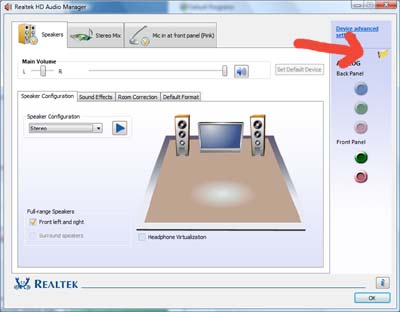
- Open the Realtek Audio Manager (not “Sound”)
- In the navigation bar in the far right, there is a little yellow folder icon. It is just below “Device advanced settings” and above “ANALOG”. Click the folder icon.
- Click “Disable front panel jack detection” so that a yellow check mark shows up. Hit “OK”, and close the Realtek HD Audio Manager. That should re-enable the sound.