"Separate Ways" Video Remake
Posted on January 21st, 2008 by Dana
I found a link to a funny scene-by-scene remake of Journey’s "Separate Ways" video!
I found a link to a funny scene-by-scene remake of Journey’s "Separate Ways" video!
Installing fonts in Windows is a little tedious. Many times one is installing these from a CD or a downloaded file and it takes a while to find that \Windows\fonts folder. By installing a shortcut to the Fonts folder in your Send To menu, installation can be done without all of that hunting.
Now fonts are easy to install. Just find your new .TTF file, right click on it, then select Send To | Fonts. The font installs and is instantly available in any application you have open!
In XP, use Windows-R instead of the Windows key when searching for the folders mentioned.
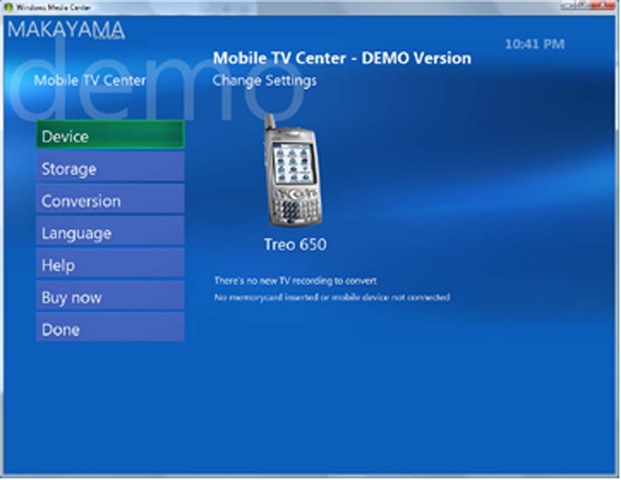 Watching recorded TV shows with a mobile device (like a Treo 650) can be done easily and cheaply! The quality is good and better yet, each episode is free.
The method I’ve found to work required that one has Windows Media Center (on XP’s MC editions, Vista Home Premium, and Vista Ultimate). Next, install Makayama’s Mobile TV Center. This plug-in to Media Center takes any recorded show from MC’s PVR function and creates a mobile version which is automatically downloaded to flash memory once it is sensed. The plug-inhas a free trial and is $40 for a license.
Next, load the free TCPMP Core Video player on your device. For the Treo, it’s a simple matter of opening up the .ZIP file and putting tcpmp.prc as well as any necessary codecs in Palm’s Quick Install folder. Now, I cannot remember which codec did the trick. I believe I installed mpeg1, avc, and mpeg4 codecs, but I can’t remember.
So that’s just a couple of easy installations, really. I simply record shows/movies on Windows Media Center. At least a couple of minutes after recording is done, I’ll pop my 2GB SD card into my computer’s card reader, and the Mobile TV Center will offload all of the shows it can to the card. If I put the SD card back in the Treo, I’m back in business to watch the shows out and about.
My favorite thing to watch out and about is not from TV, though. I really like the series of shows at Revision3.com, especially Tekzilla and Diggnation. Fans of the old Screen Savers show on TechTV are sure to love the informative tech geek shows on Rev3. Now, I don’t mind waiting for people!
There are a few keyboard shortcuts that when mastered, can really make you fly in Firefox:
Don’t forget that the center button (pushing the scroll wheel on many mice) will open the selected link in a new tab, and the selected Firefox folder in tabs.
Those are the shortcuts I use most, but there are many, many more that may suit others better at Mozilla and at Lifehacker.com
"Say, how did you get that active tab to be so pretty?"

I agree. It looks great; almost velvety. This, like the changes in Part I, is a UserChrome.css tweak. Simply put this text into your UserChrome.css file:
.tabbrowser-tab[selected=”true”] > hbox,
.tabbrowser-tab[selected=”true”] > .tab-close-button {
background-color: #000033 !important;
color: #fff !important;
}
.tabbrowser-tab[selected=”true”]:hover > hbox,
.tabbrowser-tab[selected=”true”]:hover > .tab-close-button {
background-color: #000099 !important;
color: #fff !important;
}
[source]
Notes:
Now that we have the real estate cleaned up in our Firefox application, let’s really make this thing cook!

This is my Bookmarks Toolbar in Firefox and it allows me to hit several sites quickly.
The second group of icons are folders of sites I use frequently. The first group, “D”, is daily sites I check. “W” is the group of sites I check weekly. In Firefox, you can hit any of these folders with the middle button and open all the links in tabs. I have eight sites in my “D” folder, and the Open In Tabs shortcut insures that I actually will check these 8 sites.
For more than one computer, though, things get complicated. I want my desktop and laptop computers to always keep the same population automatically. If I add a great site on my desktop Firefox, I don’t want to hassle with wondering later where I put it, so I have identical installations on each computer. There are Firefox extensions to handle this now, but I found a fantastic system that not only keeps my computers in sync, it also allows me to access them from someone else’s computer.
While we are familiar with .com and .org sites, most don’t ever come across sites with the .us extension. This is one of them. Del.icio.us is a site now owned by Yahoo which allows one to store bookmarks on Yahoo’s server. In the old days if you saw a site you wanted to bookmark, could could copy the URL, login to your del.icio.us account, and post the link with subject-related tags. Better yet, these posts are public, so society’s popular links can be found easily through del.icio.us’ page.
I don’t deal with the social aspect of del.icio.us very much, but do use it as a razor sharp bookmarking tool. The key is that each search result in del.icio.us has an RSS feed*. When one clicks on a tag (listed on the right of the screen), del.icio.us returns a list of all of one’s bookmarks associated with that tag. Since the result has an RSS feed, one can use Firefox’s Live Bookmark feature to create dynamic bookmark folders! Simply copy the del.icio.us search result’s RSS feed to a new bookmark in Firefox, and Firefox will update the folder each time it launches.
If you look at my toolbar again, you’ll see a “D” RSS feed. When I launch Firefox, it goes to del.icio.us to check which links I’ve tagged as “Daily” and lists them in my “D” feed. So, I have a quick, up-to-date folder for my Daily, Weekly, basketball, and blog-related links quickly accessible.
Adding links to del.icio.us is a snap with with the del.icio.us Firefox extension. Not only does it put a quick tag icon on the toolbar, it also has a fantastic replacement for the bookmarks sidebar. If I click Ctrl-B, two panels open on the left side of the Firefox browser. The top one of the two displays all of my tags in del.icio.us along with a Search box. The bottom panel shows search results. The search entry box yields instant results below, so if I type “drill”, for example, I see two results in the search instantly: a link about picking a drill bit for a given screw size, and a link about basketball drills.
I’ve bookmarked 831 sites in the last 3 years and have command over all of them!
Next up: Highlighting that active tab so you can actually see it.
*RSS Feeds: News sites and blogs usually have a pattern like headline, story, headline, story…. If a website creator sets up the site with an RSS feed, one can use an RSS reader (like Google Reader) to quickly crawl out and grab these headlines and stories and put them into a consistent, easy to use application. It is almost exactly like USAToday’s and Wall Street Journal’s front page quick top news sections.
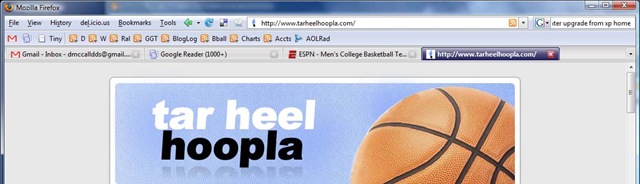
I switched to using the Firefox browser several years ago, but it wasn’t until recently that I found myself getting through massive amounts of info with time to spare. I follow about 50 web pages a day and get around 100 emails and I finally have a system that tames all of this very quickly. The first installment of this series gets your Firefox viewing experience maximized.
There is a great article at Lifehacker.com about cleaning up the top of your Firefox window. I followed her advice and am stunned at how much more efficient this is. After getting used to this layout, it is hard to use IE7 without noticing how much valuable real estate is wasted.
I won’t duplicate Gina’s article, but it instructs one how to get rid of the navigation toolbar by getting rid of unnecessary icons like back, forward, and stop when you don’t need them. I was never a big user of the Bookmarks toolbar, but after seeing how she both created folders instead of true links and abbreviated the titles, one can see how efficient the bar can be.
In the next installment, I’ll explain how to really make the Bookmarks bar even more powerful than Gina’s.


